Heartbeat monitors
Watch cron jobs and scheduled workers in Maple: the job pings a URL when it finishes, and Maple alerts when a ping is late or the job reports a failure. Setup, the ping URL, schedules, grace periods and limits.
A heartbeat monitor watches a job that runs on a schedule, such as a cron job, a nightly export or a queue worker. The job sends a request to a ping URL each time it finishes. When a ping arrives later than the schedule allows, or the job reports a failure, the monitor goes down and opens an incident. This page covers creating a monitor, sending pings, and when the monitor goes down and recovers.
For a service that handles requests, alert on the traces it already sends (Uptime monitoring). A heartbeat fits a job where the failure is that nothing happens: the job never starts, hangs, or exits before its last step.
Create a monitor
You need the engineer or admin role in the organization.
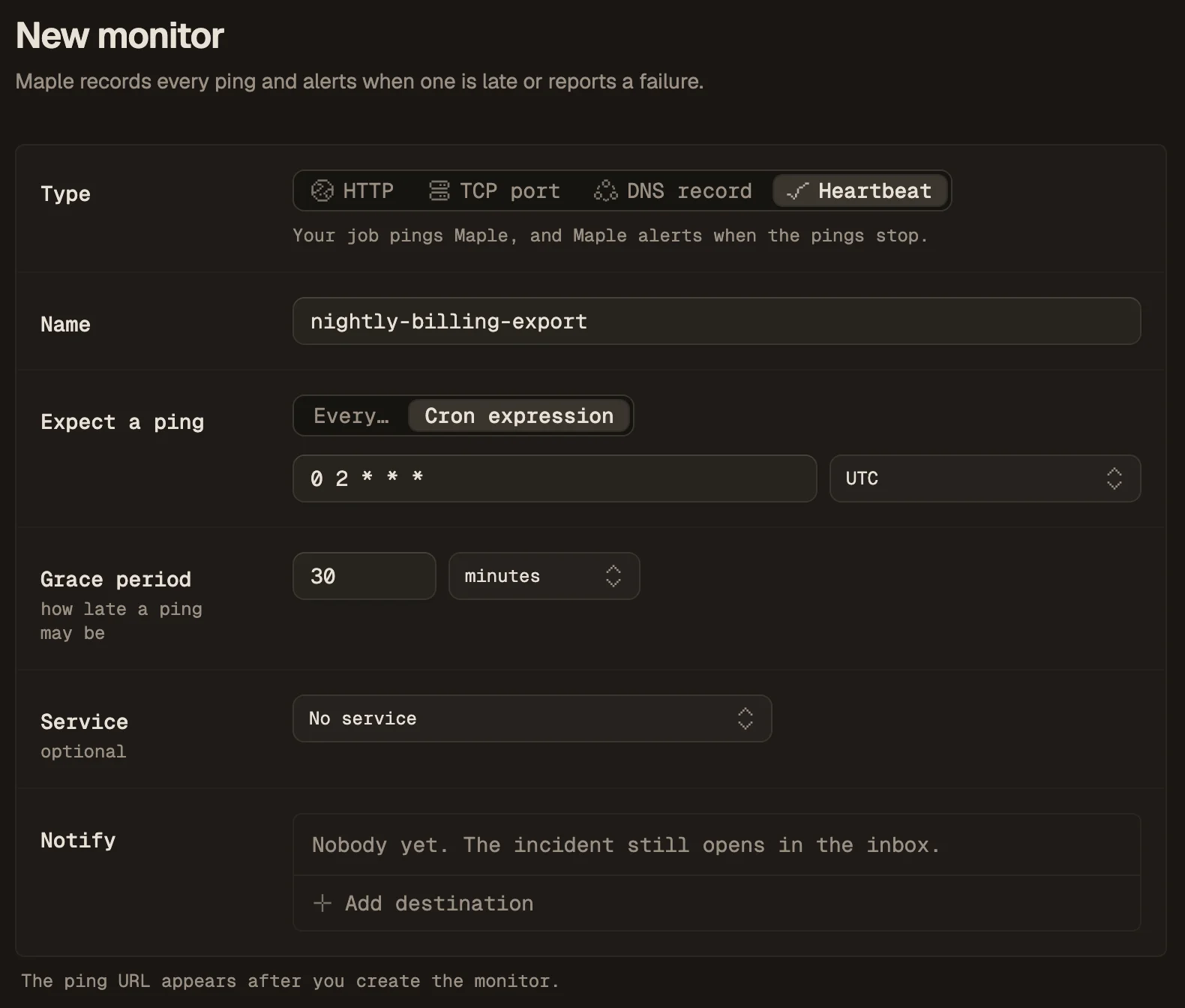
- Open Alerts, select the Uptime tab and click New check.
- Under Type, pick Heartbeat.
- Enter a Name, such as
nightly-billing-export. - Under Expect a ping, set the schedule:
- Every…: an interval of at least 60 seconds, such as 24 hours. Use this when the job runs at a fixed interval.
- Cron expression: the job’s cron expression, such as
0 2 * * *, and the Time zone it runs in. Use the same expression as the job’s crontab.
- Set Grace period: how late a ping may be before the monitor goes down. The default is 30 minutes.
- Optional: pick the Service the job belongs to. A down monitor then shows up in that service’s health.
- Under Notify, add the notification destinations to alert. Without one, the incident still opens in the inbox.
- Click Create monitor.
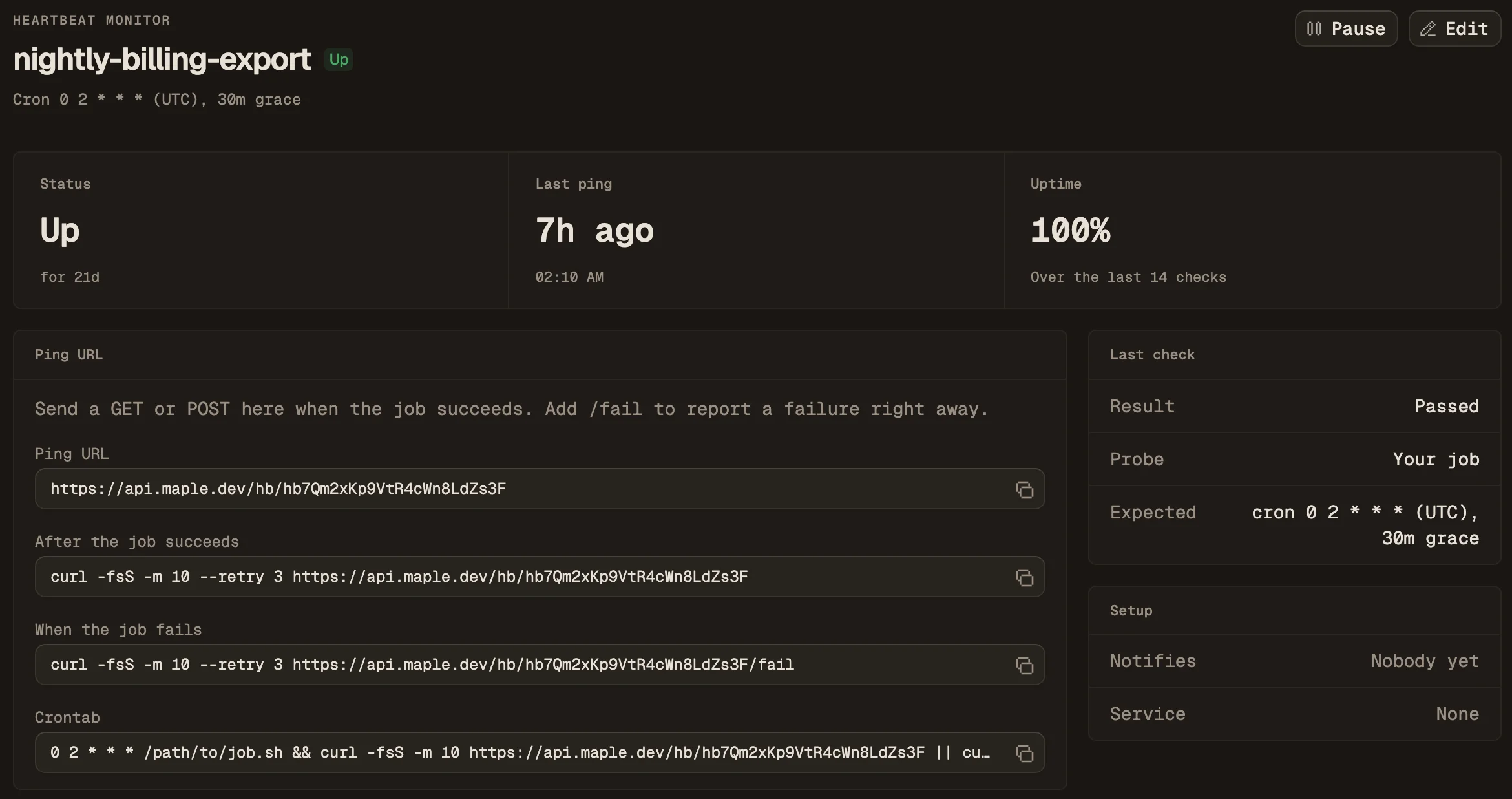
The monitor page opens with a Ping URL panel. It holds the URL and the curl lines to add to the job.
Send pings from the job
The ping URL has this form:
https://api.maple.dev/hb/<token> Organizations on the EU instance get a URL on https://api.eu.maple.dev. Copy the URL from the monitor page rather than building it.
The job reports its result with one request:
| Request | Meaning |
|---|---|
GET or POST <url> | The job succeeded. The monitor goes up. |
GET or POST <url>/fail | The job failed. The monitor goes down at once. |
Maple answers 200 OK to a ping it recorded and 404 Not found for an unknown token or a paused monitor.
Send the success ping as the job’s last step, after the work is done:
curl -fsS -m 10 --retry 3 https://api.maple.dev/hb/YOUR_TOKEN-m 10 stops the ping from hanging the job, and --retry 3 retries a failed connection. To report failures too, wrap the job in a script:
#!/bin/sh
if /path/to/job.sh; then
  curl -fsS -m 10 --retry 3 https://api.maple.dev/hb/YOUR_TOKEN
else
  curl -fsS -m 10 --retry 3 https://api.maple.dev/hb/YOUR_TOKEN/fail
fi
The monitor page also shows a one-line crontab entry that does the same.
When the monitor goes down and recovers
A new monitor starts as pending and waits for its first ping. The monitor’s state changes as follows:
- Late. The monitor goes down when no ping arrives by the next expected run plus the grace period. The next expected run is counted from the last ping: the last ping plus the interval, or the first cron time after the last ping. A pending monitor counts from when it was created or resumed, and the error reads “No ping received yet”.
- Failure ping. A ping to
/failputs the monitor down at once, with the error “The job reported a failure”. - Recovery. The next success ping puts the monitor back up.
Maple checks each heartbeat every minute. A down monitor opens an incident and notifies its destinations, again every 30 minutes while it stays down, and resolves it on the next check after a success ping.
When the job pings at its end, the grace period has to cover how long the job runs. A job on 0 2 * * * that runs for 40 minutes pings at 02:40, so with a 30-minute grace period the monitor goes down at 02:30 every night and recovers at 02:40. Set the grace period above the job’s longest run.
Pause on the monitor page stops the monitor: pings return 404 and no incident opens. Resume starts it over from pending, with a full period before the first ping is due.
Create a monitor from an AI assistant or Terraform
On the MCP server, create_uptime_monitor with kind set to heartbeat creates a monitor. It takes:
heartbeat_interval_seconds(at least 60), orcronwith an optionaltimezone(defaultUTC). Pass one, not both.grace_seconds: 0 to 86400. The default is 300, not the 30 minutes the app uses.destination_idsandservice, both optional.
The result includes the ping URL (monitor.heartbeatUrl) and a curl line for the job (pingCommand).
In Terraform, use maple_uptime_monitor with type = "heartbeat". Its read-only heartbeat_url attribute is the ping URL.
Limits
- The interval is at least 60 seconds.
- The grace period is 0 seconds to 24 hours.
- The token in the URL is the only credential: anyone with the URL can send pings. Only engineers and admins see it, in the app and in the API. The URL does not change when you edit the monitor. To replace a leaked URL, delete the monitor and create a new one.
Next steps
- Uptime monitoring: alerts on traces and HTTP checks.
- Incidents: what happens after a monitor goes down.
- Notification destinations: where alerts go.